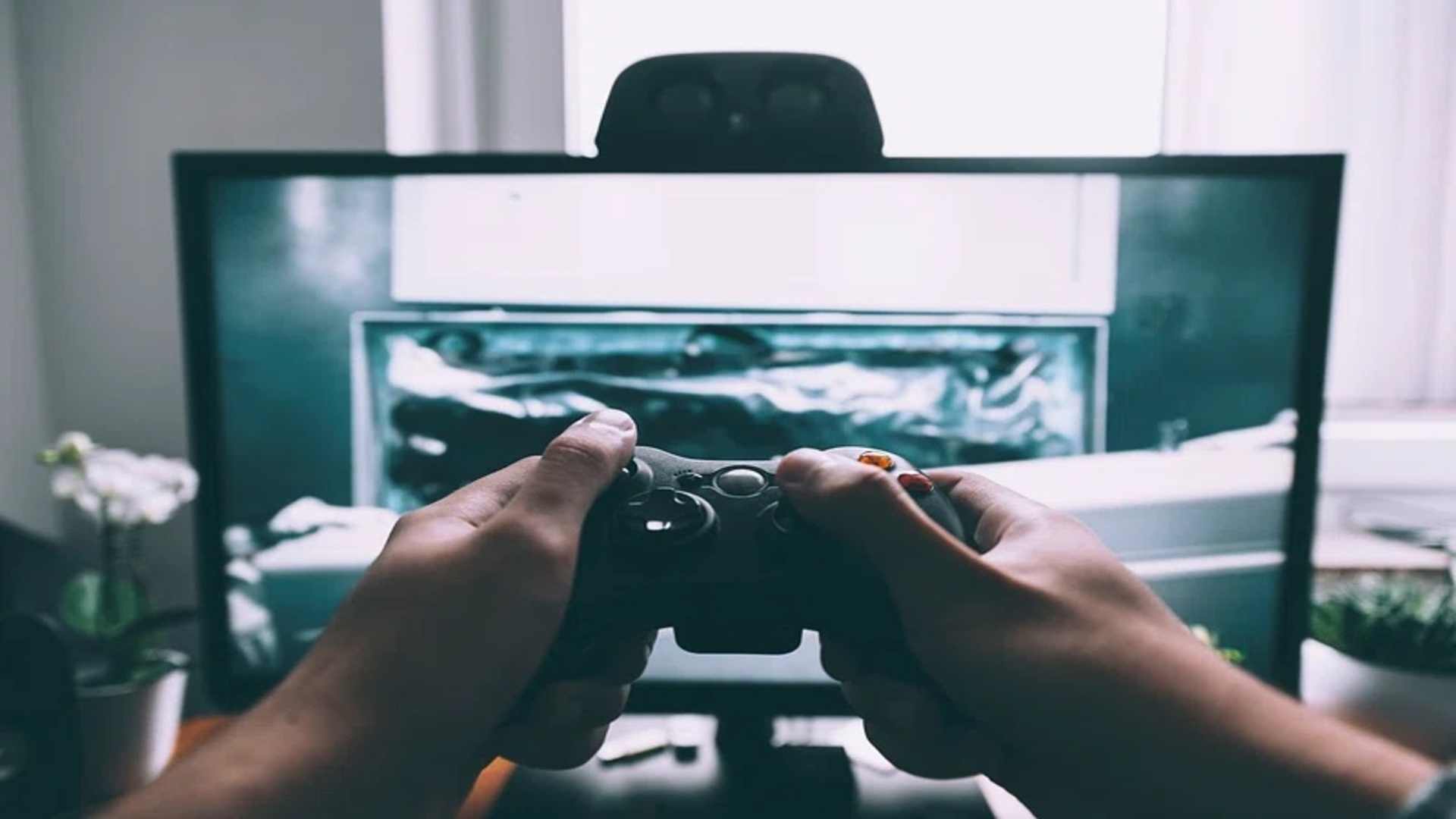
The Steam Deck provides an incredible handheld gaming experience, but playing in docked mode or proping the device up on a table often calls for a traditional gamepad. Sony's PlayStation 5 DualSense controller is an excellent companion choice, offering superb ergonomics and familiar layouts for PC titles. Establishing a wireless connection between these two modern devices is a quick process that completely changes your portable setup.
Preparing the DualSense for Pairing Mode
Before your handheld console can discover the gamepad, you must make sure the controller is entirely powered down. Press and hold the central PlayStation button for several seconds until the light bar shuts off completely. This ensures the device is ready to start broadcasting its wireless signal to new hardware.
Next, press and hold the Create button and the PlayStation button simultaneously until the light bar begins to flash rapidly. The Create button is located on the upper left side next to the directional pad. This distinct blinking sequence indicates that the controller is actively looking for a new Bluetooth host.
Configuring the Handheld Settings
Turn on your portable console and open the primary settings menu by pressing the physical Steam button on the left side. Navigate downward through the system menu options until you highlight the dedicated Bluetooth section. Ensure the primary wireless toggle is flipped to the on position so the device can scan for local signals.
Look at the bottom section of the screen under the list of available devices to find your peripheral. The gamepad will typically appear labeled clearly as Wireless Controller in the scanned hardware lineup. Select this item with the native controls to initiate the authentication sequence between the units.
Finalizing the Integration and Customization
Once the selection is confirmed, the rapid flashing on the gamepad light bar will transition into a solid steady glow. This visual indicator confirms that the system has successfully registered the new input device for active gameplay. You can now navigate the entire user interface and launch your library titles seamlessly using the external pad.
If you prefer using a physical link instead, you can connect the components directly using a standard USB-C cable. This alternative wired approach bypasses the wireless discovery steps completely and handles internal charging simultaneously. Players can check out the Steam Store to browse compatible cooperative games that work perfectly with this external controller configuration.
Troubleshooting Common Connection Issues
If the gamepad fails to show up in the scanning list, try toggling the system Bluetooth connection off and back on again. Sometimes clearing out older peripheral profiles from the menu can resolve sudden pairing conflicts immediately. You can also press the small reset button on the back of the pad using a paperclip to restore factory settings.
Ensuring your portable console is running the latest operating system update can also resolve unexpected software bugs. Keeping both devices adequately charged prevents sudden drops during the synchronization process. Following these basic maintenance practices guarantees a stable and highly responsive input connection for extended gaming sessions.